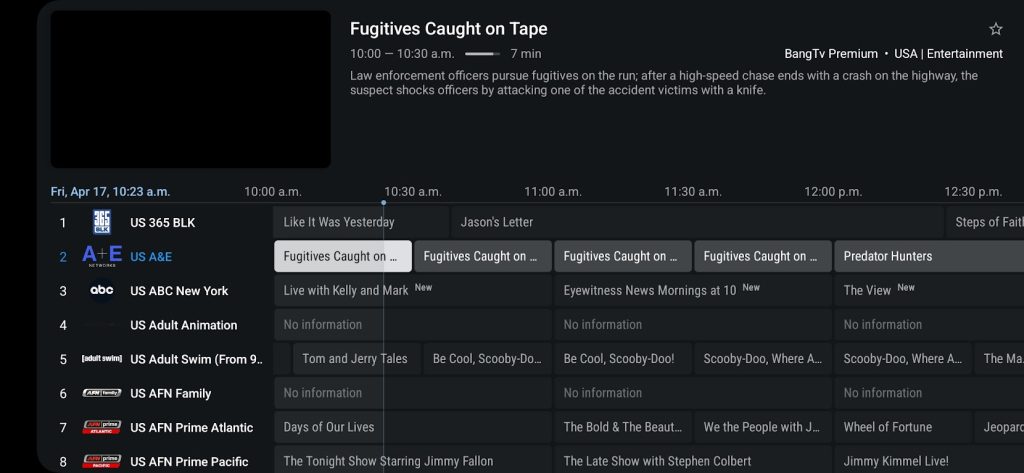
While a channel is in full screen, press the Back button on the remote. You should see this screen.
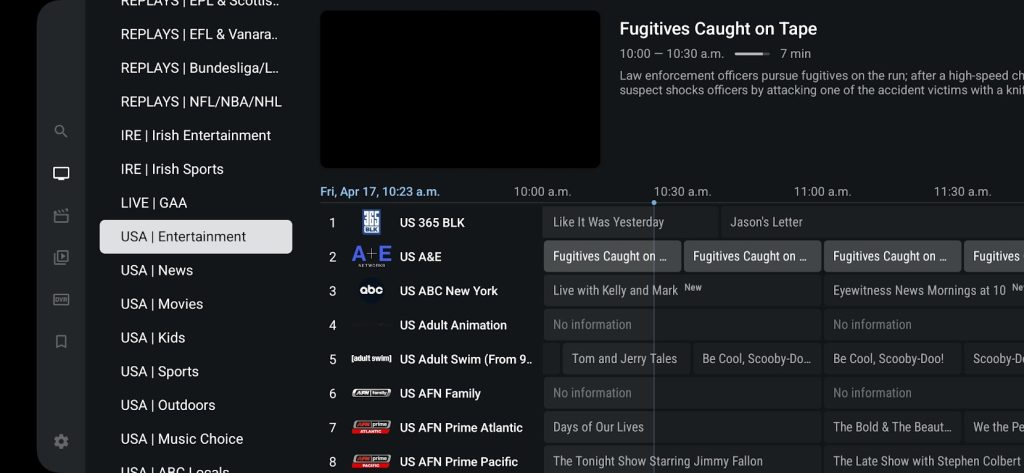
Press the Back button one more time, and you should see this screen.
Press the Back button one more time. You should see this screen.
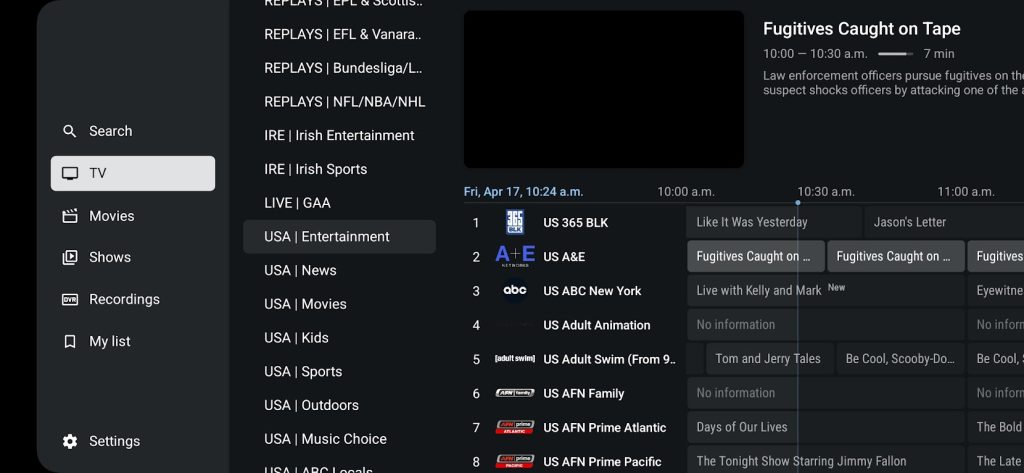
Scroll down and select Settings.
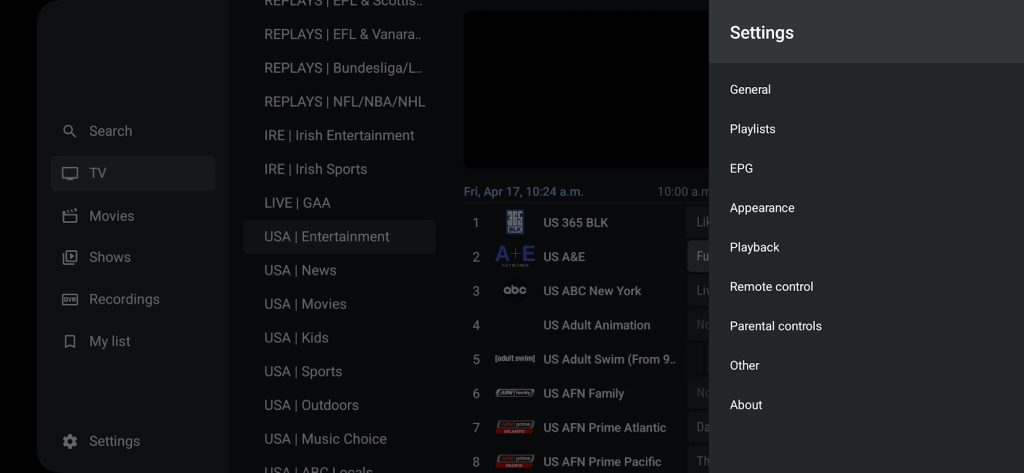
Next, navigate to and select Playlist.
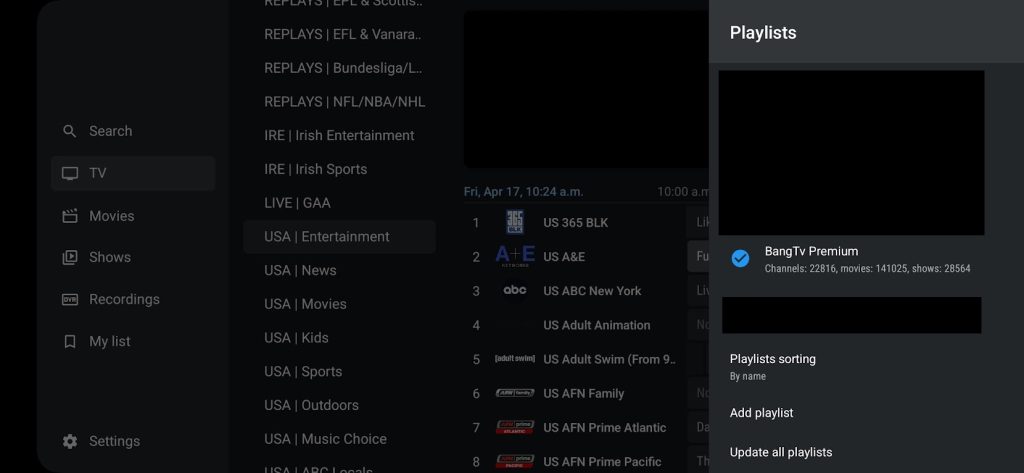
You should see a playlist—this one is called BangTV Premium. In the other BangTV app, it may be called BangTV or something else. Select the playlist and press OK.
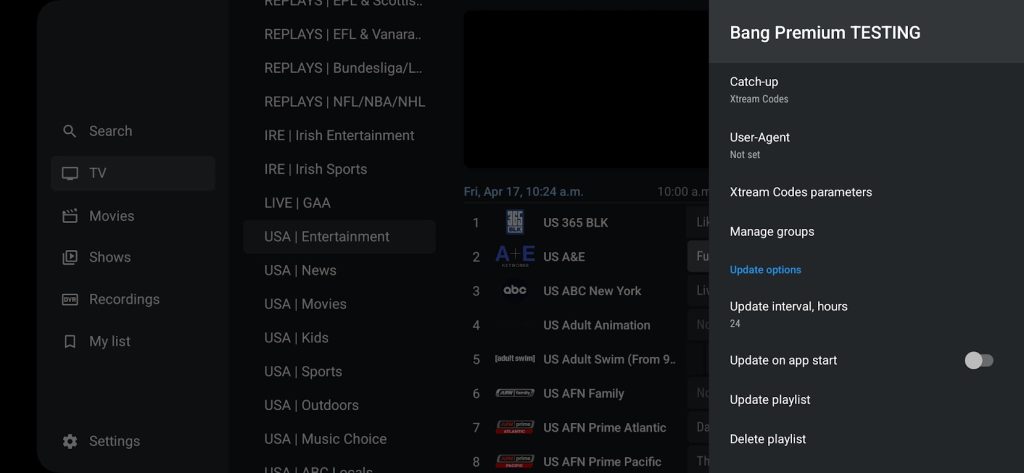
Scroll to the bottom and select Delete Playlist, then press OK. This will remove the playlist.
After it is deleted, unplug the device from power for 10 seconds, then plug it back in. This will restart the device.
Once the device has restarted, open the BangTV app again. You should see the following screen.
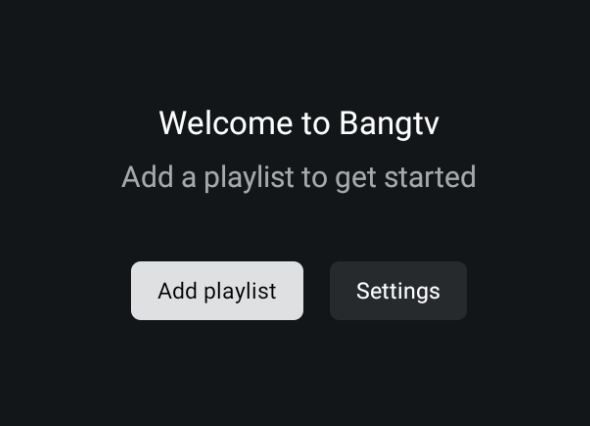
Select Add Playlist. If a second screen appears, choose the Xtream Codes option. If you select Xtream Codes, skip the next step.
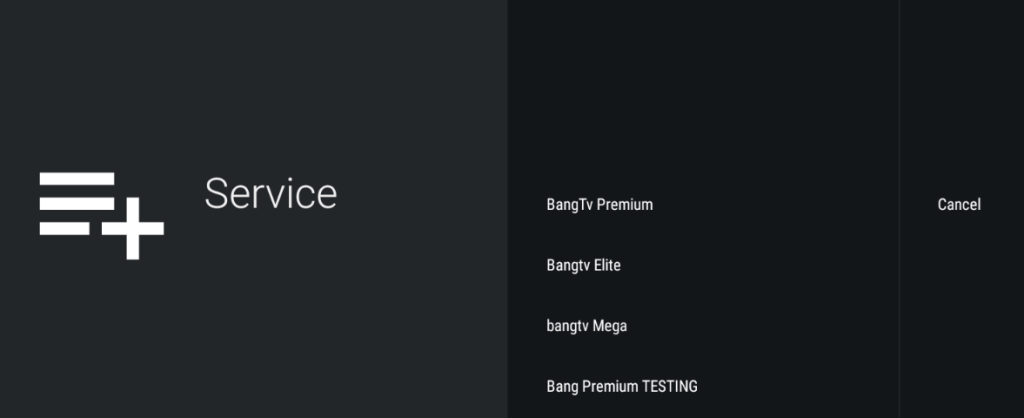
Now select BangTV Premium. You will be prompted to enter your username and password.
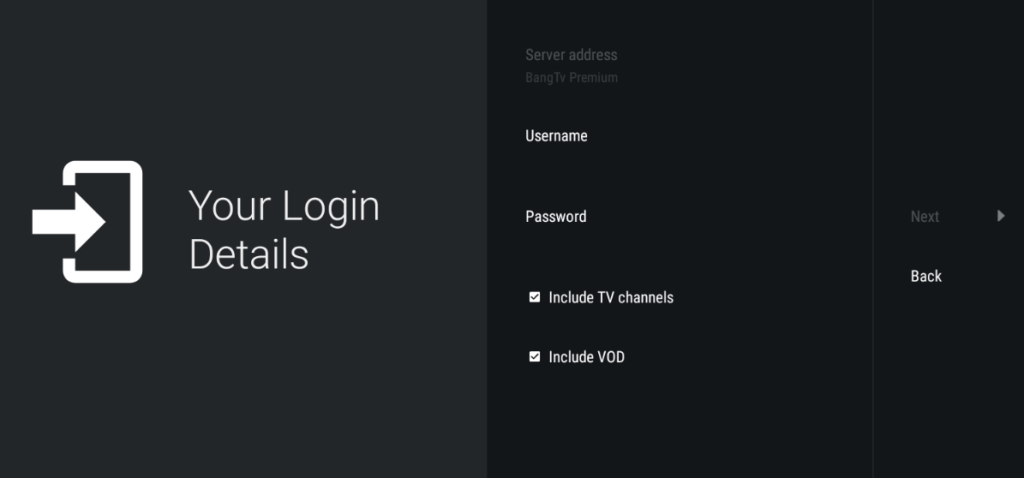
Everyone has a unique username and password. If you don’t have yours, please message me to get it.
If you are using the older BangTV app, you will see a Server Code field before the username and password. Enter 003 as the server code.
Make sure Include TV Channels and Include VOD are both checked, then tap Next.
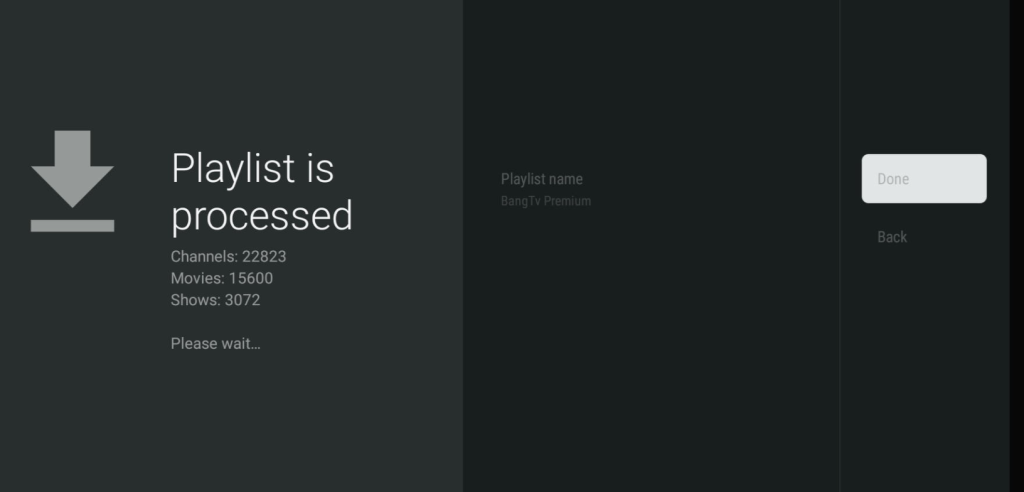
The app will begin processing. Once processing is complete, you can rename the playlist by clicking on Playlist name – then Done